 AILibrary
Important: Provider interfaces and export contents can change. Confirm the provider’s current procedure before exporting private data.
Step 1 — Request and download your Claude data
- Sign in to Claude on the web or use Claude Desktop.
- Open the account menu and go to Settings → Privacy.
- Choose Export data and wait for the download email.
- Download your export archive using the link while it remains valid.
Official provider instructions: Claude export help.
Anthropic states that data exports are not requested from its mobile apps. Work and Enterprise access may depend on your administrator role.
Step 2 — Import the export into AILibrary
- Start AILibrary on your computer.
- Open File → Import Source and select Claude.
- Choose the provider export you downloaded. For ChatGPT and Claude this is normally an archive; for Copilot it is CSV. For Gemini, use the supported downloaded activity export.
- Follow the import prompts, then review the resulting conversations in the library.

Step 3 — Search, organise and export
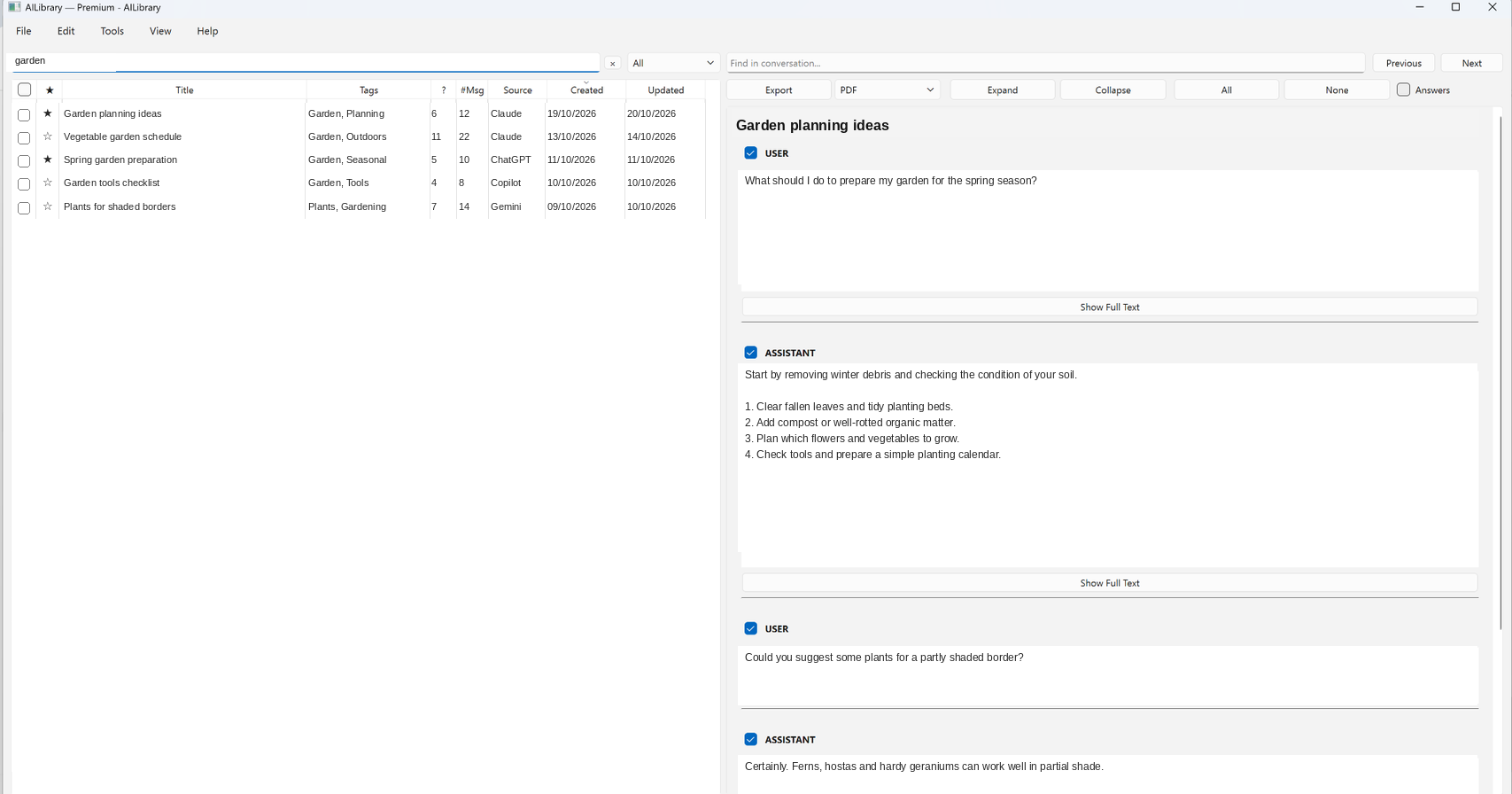
Search by conversation title or text, add tags and notes, and mark important discussions as favourites. To create a portable copy, select a conversation and choose PDF, Word, Markdown, HTML or Plain Text in the Export menu.
Troubleshooting
- No conversations imported? Check that your export contains conversation history and that you selected the matching import source.
- Export unavailable? Check your account or organisation's permissions and the provider's help page.
- Unexpected formatting? Export formats evolve. Try the latest AILibrary release and consult support.
- Privacy: Keep original archives secure and avoid sharing private conversation exports in support requests.
Keep your Claude conversations searchable
AILibrary provides a local desktop library for importing, searching and exporting supported AI conversations.
Download AILibrary All documentationReviewed 23 October 2026. Provider exports and available formats can change.