 AILibrary
Your AI conversations.
One searchable library.
Bring conversations exported from ChatGPT, Claude, Gemini, Grok and other AI services into one searchable desktop library. Find earlier answers, organise useful work and export selected conversations without switching between platforms.
Free edition: up to 30 conversations. Upgrade to Premium for unlimited imports.
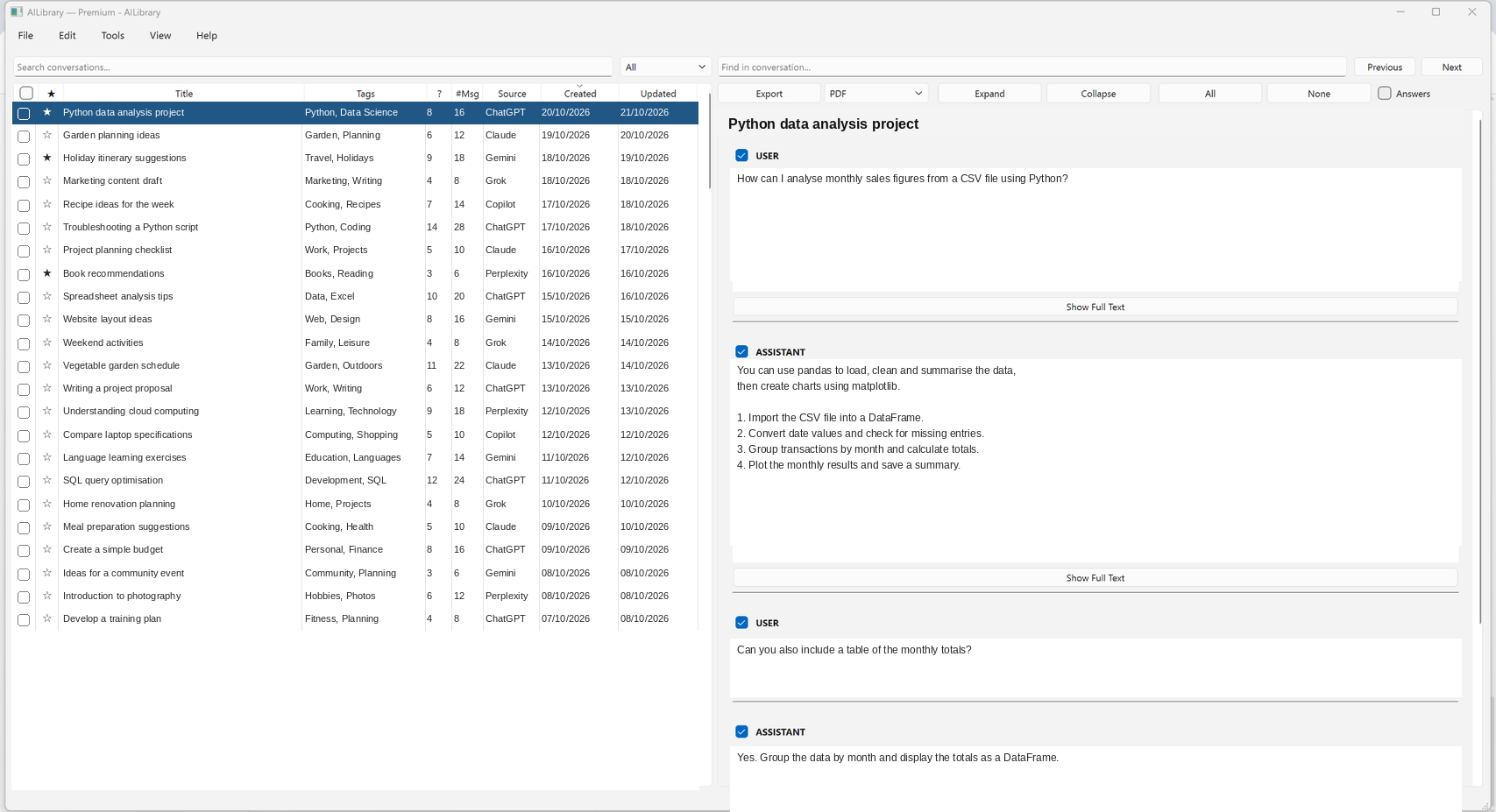
See AILibrary in action
Watch a 93-second introduction to importing, searching, organising and exporting AI conversations.
Prefer YouTube? Watch the AILibrary demonstration on YouTube.
From scattered chats to a useful archive
Three steps to bring your existing conversations together. No need to copy and paste each chat.
-
Export your chats
Use the export function provided by your AI service to download your conversation data.
-
Import into AILibrary
Choose the corresponding import source and add its supported export file to your library.
-
Find and reuse your work
Search across services, add tags and export useful conversations when you need them.
Need help exporting? Read the instructions for each AI service .
Find the conversation you need
Search conversations from different AI services in one place. Filter by source, browse titles and tags, and read matching discussions in the preview. You can also find specific text within a conversation.
Search and organisation features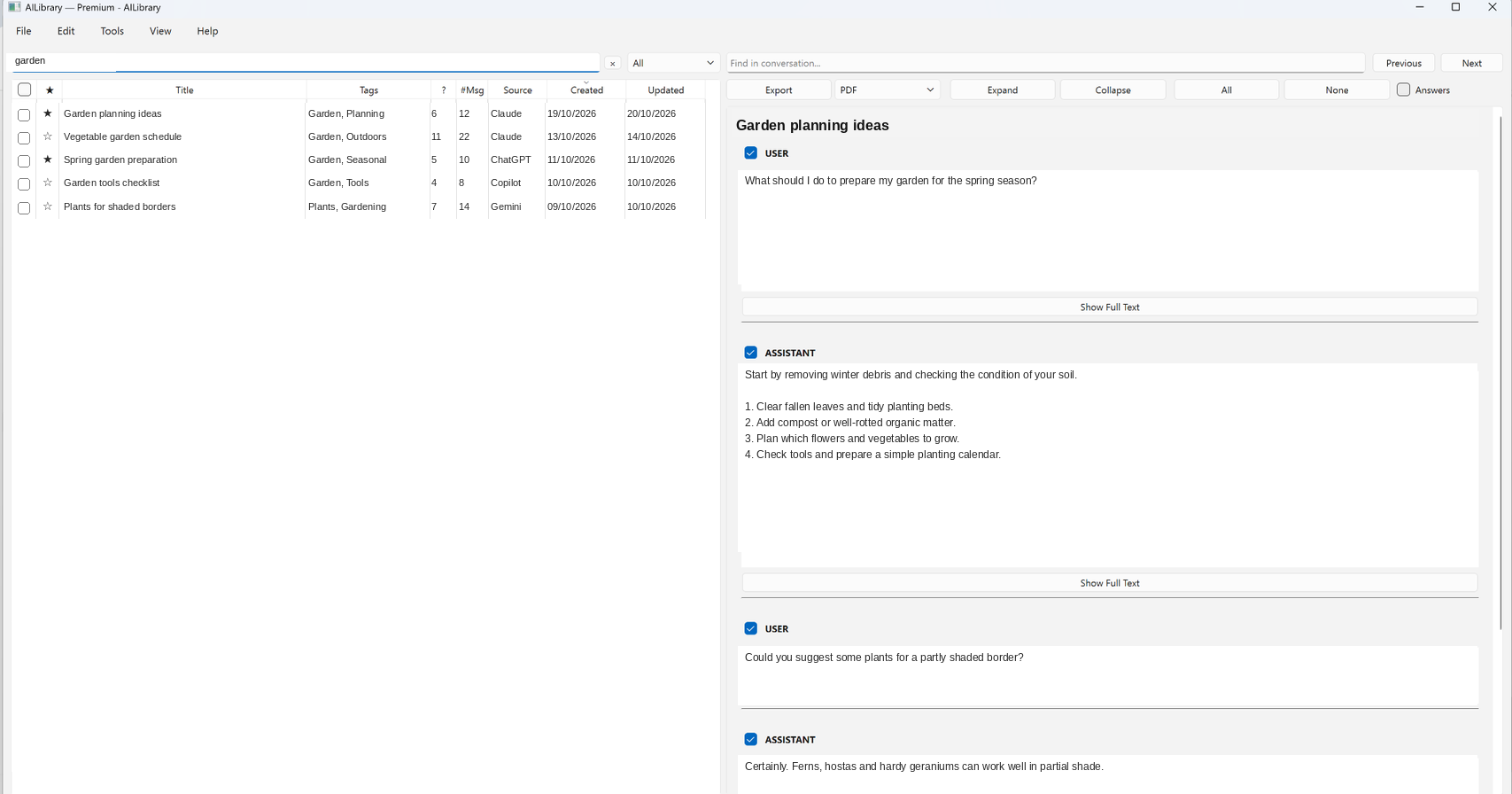
Import from the services you already use
Bring exported conversations from ChatGPT, Claude, Copilot, DeepSeek, Gemini, Google AI, Grok, LM Studio, Meta AI, OpenWebUI, Perplexity, Qwen, Unsloth and Vibe into one collection.
Import workflows and supported export file formats vary by provider. LM Studio conversation JSON files can be imported individually or together in a ZIP. Our documentation explains how to obtain and import each file.
Import instructions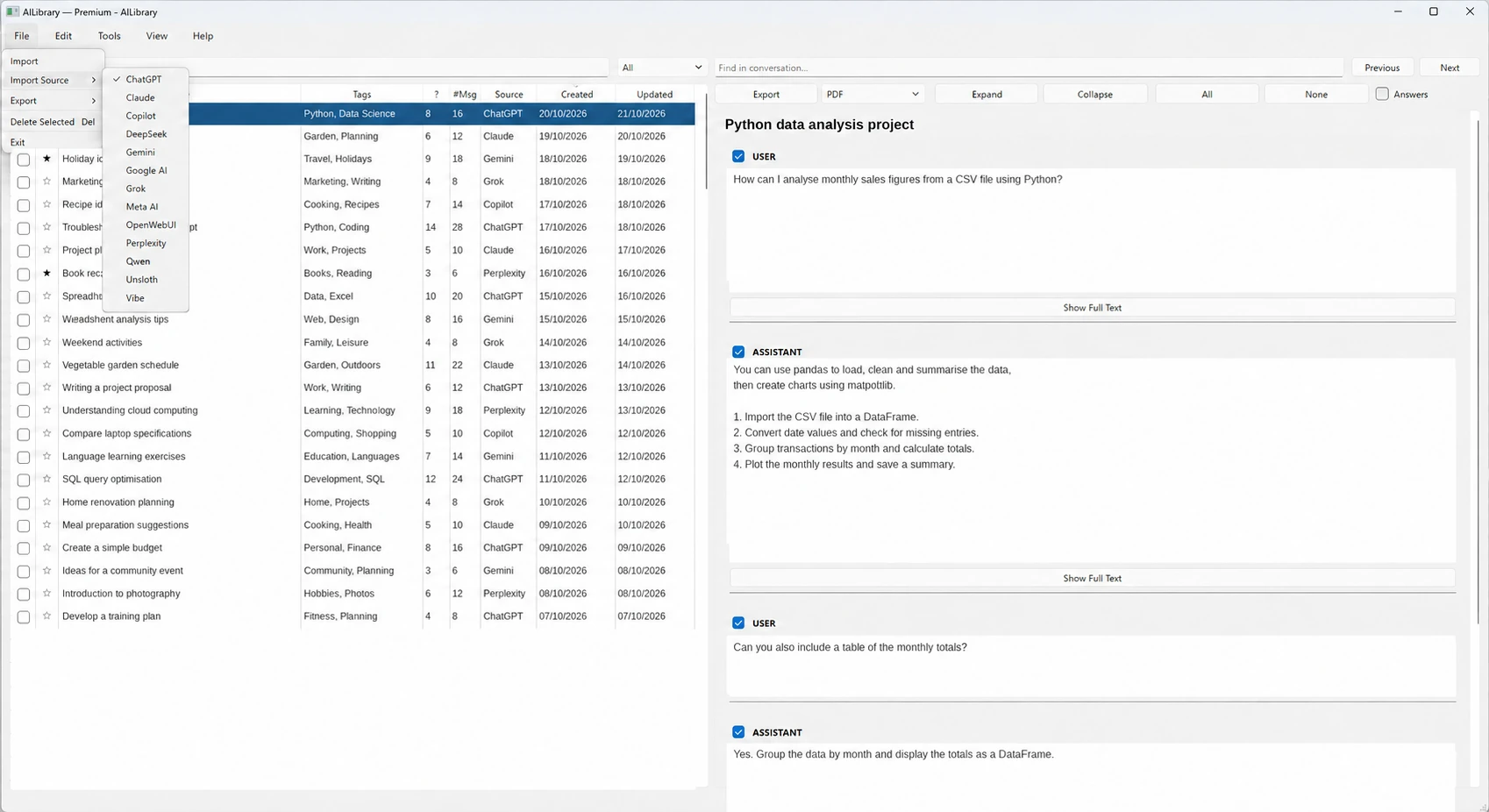
Export your conversations
Turn the conversations worth keeping into useful files. Export selected discussions to PDF, Word (DOCX), Markdown, HTML or plain text, including readable message formatting for reference and archiving.
Export options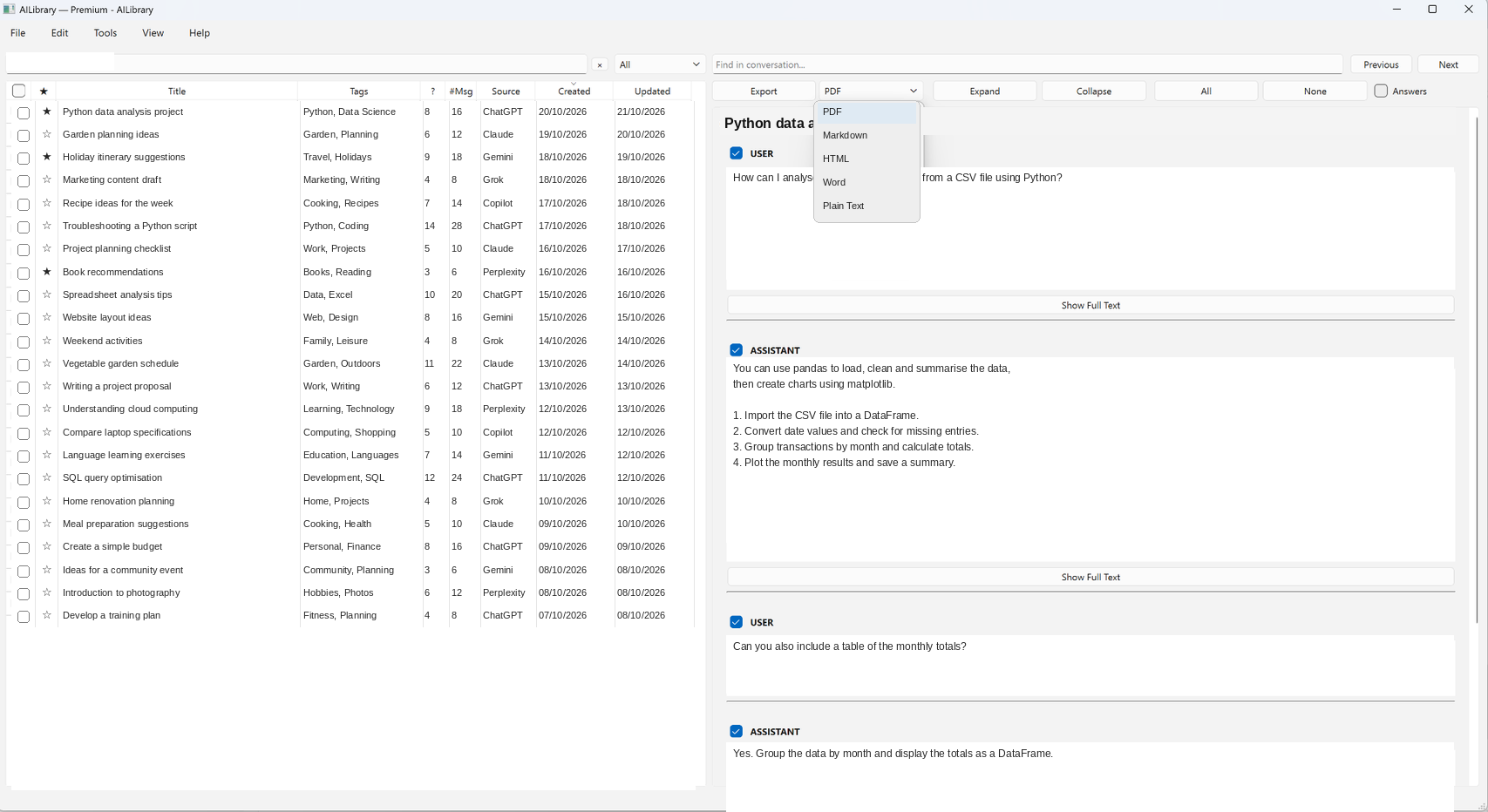
Keep the conversations that matter organised
Organise
Apply tags, keep notes and mark important conversations as favourites.
Browse
Read questions and responses in a split-pane preview, with source and date information.
Maintain
Back up and restore your conversation database and check for application updates.
Why choose AILibrary? See how it fits alongside other ways to keep AI chats.
Built around a local conversation library
Your imported conversations are stored in a database on your computer. Premium subscriptions are verified through an online licensing service. Read about privacy and data handling .
Start free. Upgrade when you need to.
Keep up to 30 conversations in your library and use the search, organisation and export tools without a subscription.
Download freeMonthly and annual subscriptions are available.
See Premium plans for current availability and checkout.
Remove the 30-conversation limit. Monthly and annual subscriptions are available through secure Stripe checkout.
Explore PremiumA few useful things to know
Does AILibrary access my AI accounts directly?
AILibrary imports supported files that you export from each AI service. You first download your conversation history using that provider's export process.
What happens when I reach 30 conversations?
Your existing conversations remain in your library. The Free edition prevents further new conversation imports beyond its 30-conversation limit; Premium removes the limit.
Can I export conversations to documents?
Yes. AILibrary supports PDF, Word (DOCX), HTML, Markdown and plain-text exports. See the export features .
Where are my conversations stored?
Imported conversations are stored locally on your computer. See our security and privacy information for details of the online services used for licensing and other functions.
Free practical guides
Get more from your AI conversation history
Step-by-step instructions for exporting, searching and backing up your AI conversations. The guides are useful whether you're just getting started or already use AILibrary.
Export ChatGPT chats to PDF or Word
Request your ChatGPT export, import it into AILibrary and save selected conversations as readable documents.
Read the ChatGPT export guideBack up and search conversations across AI services
Keep ChatGPT, Claude, Gemini and other supported conversations in one searchable, locally backed-up library.
Read the backup and search guideReady to bring your AI conversations together?
Get AILibrary for Windows, Linux or macOS. Current version: — .
Choose your download Read the documentation