 AILibrary
ChatGPT provides a downloadable ZIP archive of account data—not a ready-made PDF or Word document of every chat. This guide shows you how to request that archive, import the conversations into AILibrary and export the conversations you want as PDF or Word (DOCX).
In ChatGPT, open Settings → Data Controls → Export and confirm the request. Once the ZIP arrives, select ChatGPT as the import source in AILibrary, import the export and save selected conversations as PDF or DOCX.
Before you start
You will need a ChatGPT account eligible for a self-service data export, a computer where you can access the downloaded ZIP, and AILibrary installed. The Free edition lets you store up to 30 imported conversations. Premium removes that limit.
Self-service exports are available for personal ChatGPT accounts on Free, Go, Plus and Pro. ChatGPT Business, Enterprise and Healthcare workspaces do not use the same self-service export process. For managed accounts, follow the workspace's administrator instructions.
The export may contain personal or confidential information. Store it somewhere secure and do not upload it to untrusted file-conversion websites.
1. Request your ChatGPT conversation export
- Sign in at chatgpt.com.
- Open your profile menu and select Settings.
- Choose Data Controls.
- Under Export data, choose Export, then Confirm export.
- Look for the export-ready notification by email or SMS, depending on your account.
- Follow its download link and save the
.zipfile to your computer.
OpenAI advises that preparing an export can take up to seven days and that the download link expires after 24 hours. Download it while signed in to the account that requested it. If the link expires, request another export.
The ZIP typically includes the conversation history and other account data. You may see conversations.json or numbered JSON conversation files in larger exports. Keep the original ZIP as your source archive.
OpenAI's official ChatGPT export instructions provide the latest menu steps and account eligibility.
2. Import the ZIP into AILibrary
- Open AILibrary.
- In the File menu, set Import Source to ChatGPT.
- Select File → Import and choose the downloaded ZIP file.
- Review the import result, then select a conversation in the library to read it.
- Use search, tags or favourites to find the content you want to keep.
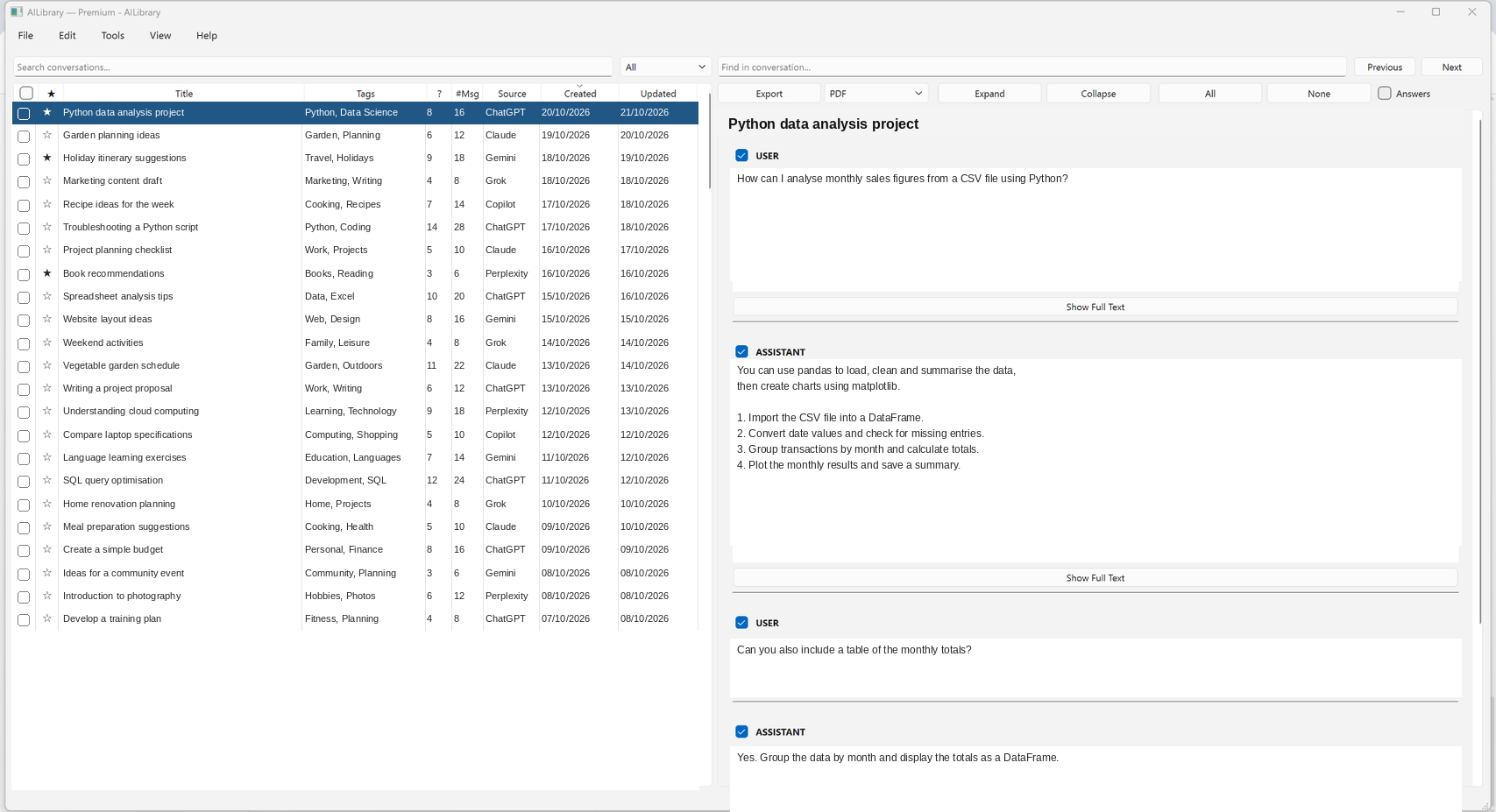
If the import does not work, first verify that you chose the ChatGPT import source and selected the original export ZIP. Check the documentation for current importer compatibility notes.
3. Save selected conversations as PDF or Word
- Select the conversation or conversations you wish to export in AILibrary.
- Choose the application's Export option and select PDF or Word (DOCX).
- Choose where to save the document, then complete the export.
- Open the resulting file and check formatting and completeness before sharing or deleting anything.
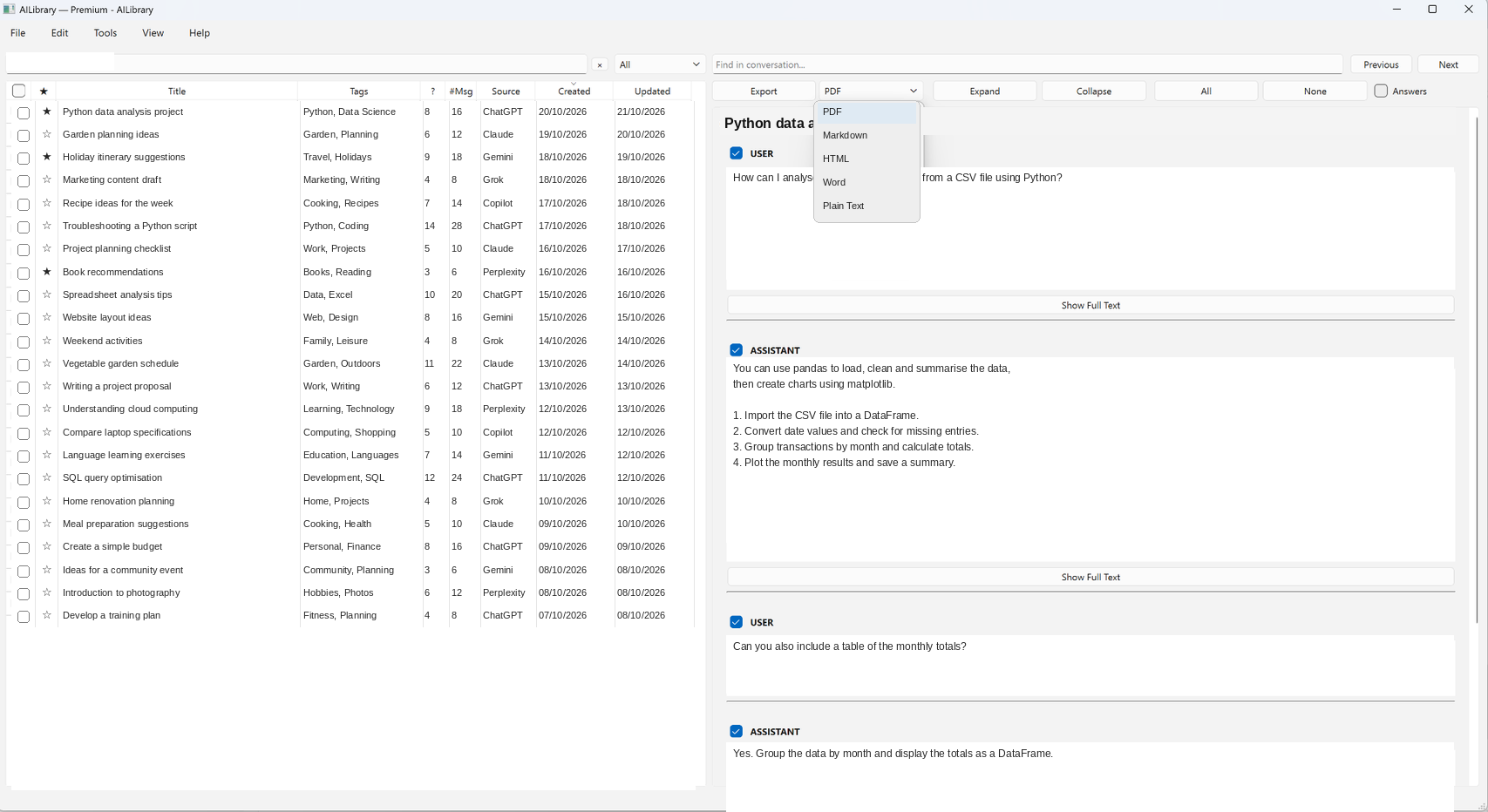
PDF: good for a readable fixed-layout record. AILibrary's PDF exporter supports bookmarks and optional page numbers.
Word (DOCX): useful when you need to edit, annotate or reuse text.
Markdown, HTML or plain text: useful for notes, websites or simpler archival workflows.
For a single short chat, your browser's Print command may also offer “Save as PDF”. That is a different process from exporting your account history and managing multiple conversations with AILibrary.
Common questions
Does ChatGPT export directly to Word or PDF?
The account-level export is a ZIP archive. AILibrary turns supported imported conversations into PDF, DOCX and other document formats.
Will my AILibrary library update automatically when I chat in ChatGPT?
No automatic live synchronisation is described here. Request a fresh provider export and import it when you want to bring in newer conversations.
Why are some chats missing?
First check whether the ChatGPT export contains the chat. Deleted or temporary chats, workspace policies and provider export limitations can affect what is included. AILibrary cannot restore information that the provider did not export.
Is the exported ZIP the same as an AILibrary database backup?
No. The provider ZIP is source data; an AILibrary database backup protects the local library, including how you've organised it. Keep both when possible.
Turn your chat history into something you can use
Import conversations, search for useful information and export selected work in a convenient format.