 AILibrary
Features
A practical guide to what you can do with AILibrary, shown using the actual desktop interface.
Import multiple AI sources
Choose the source of an exported conversation and add it to your library. Supported sources include ChatGPT, Claude, Copilot, DeepSeek, Gemini, Google AI, Grok, Meta AI, OpenWebUI, Perplexity, Qwen, Unsloth and Vibe.
The provider-specific export steps are described in our documentation.
How to import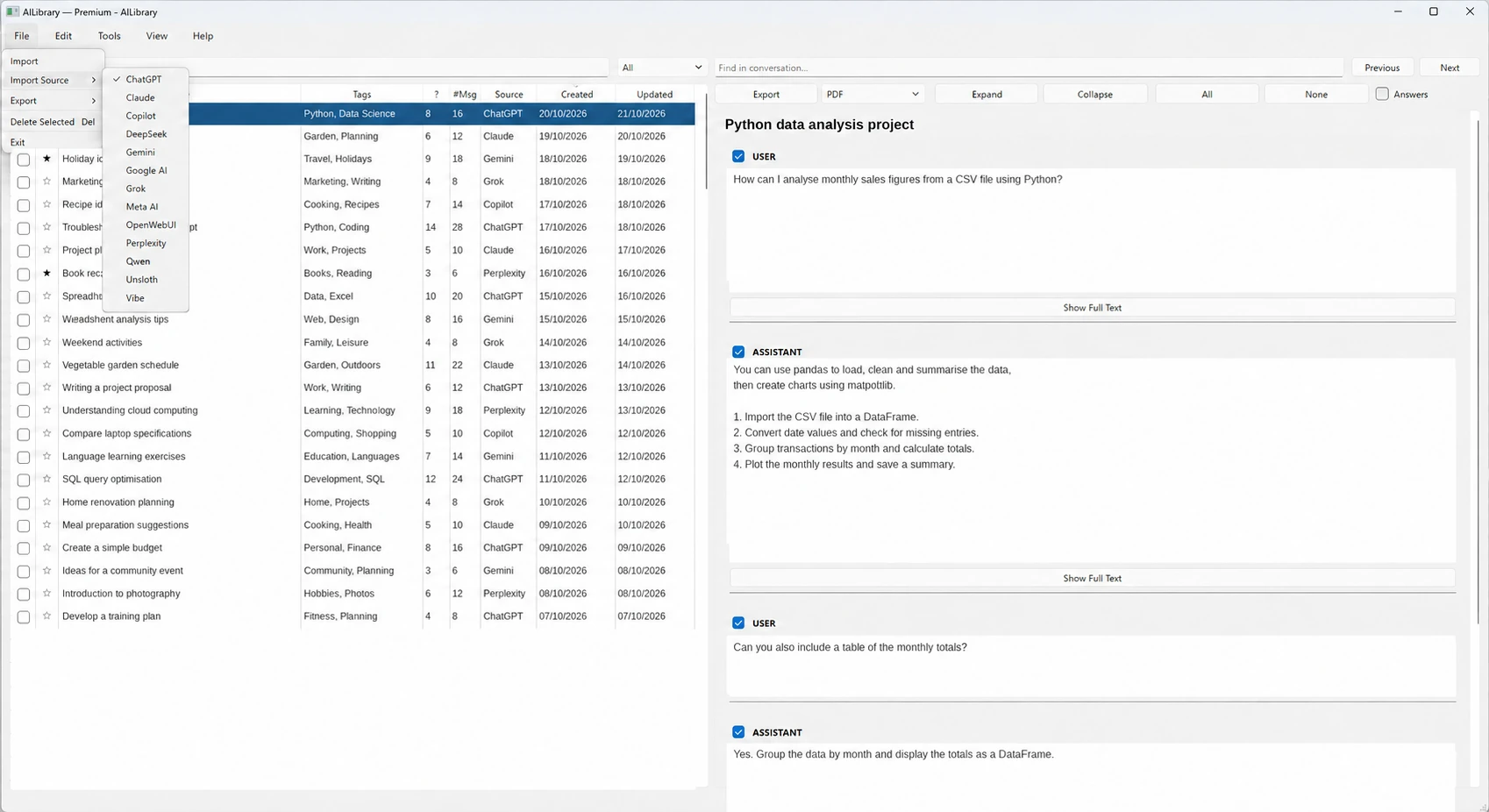
Search your entire collection
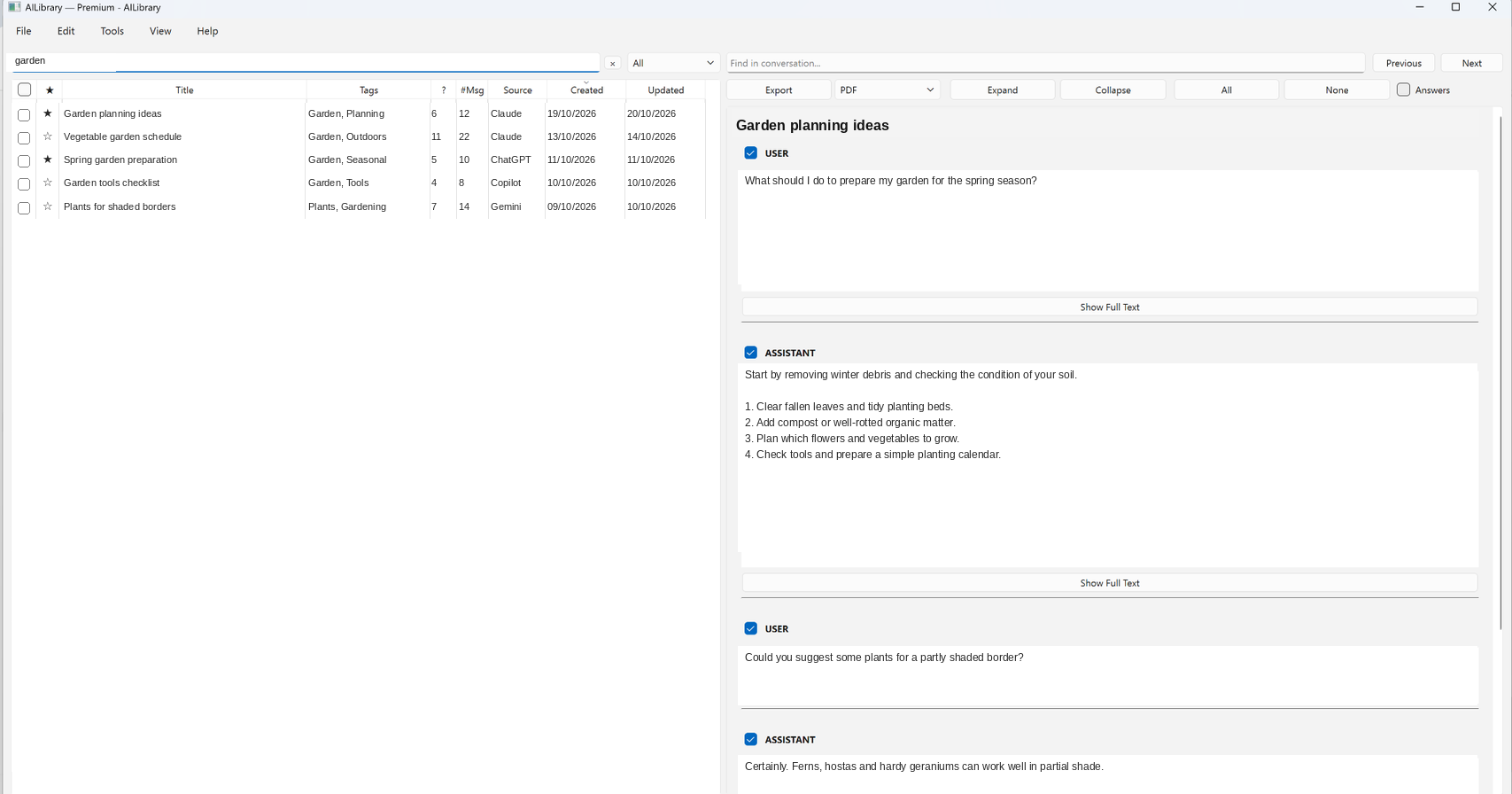
Search across imported content rather than opening individual export files. Review titles, sources, created and updated dates, tags and message counts in the conversation list.
Use the in-conversation search field with Previous and Next to navigate within a discussion.
Read, filter and organise
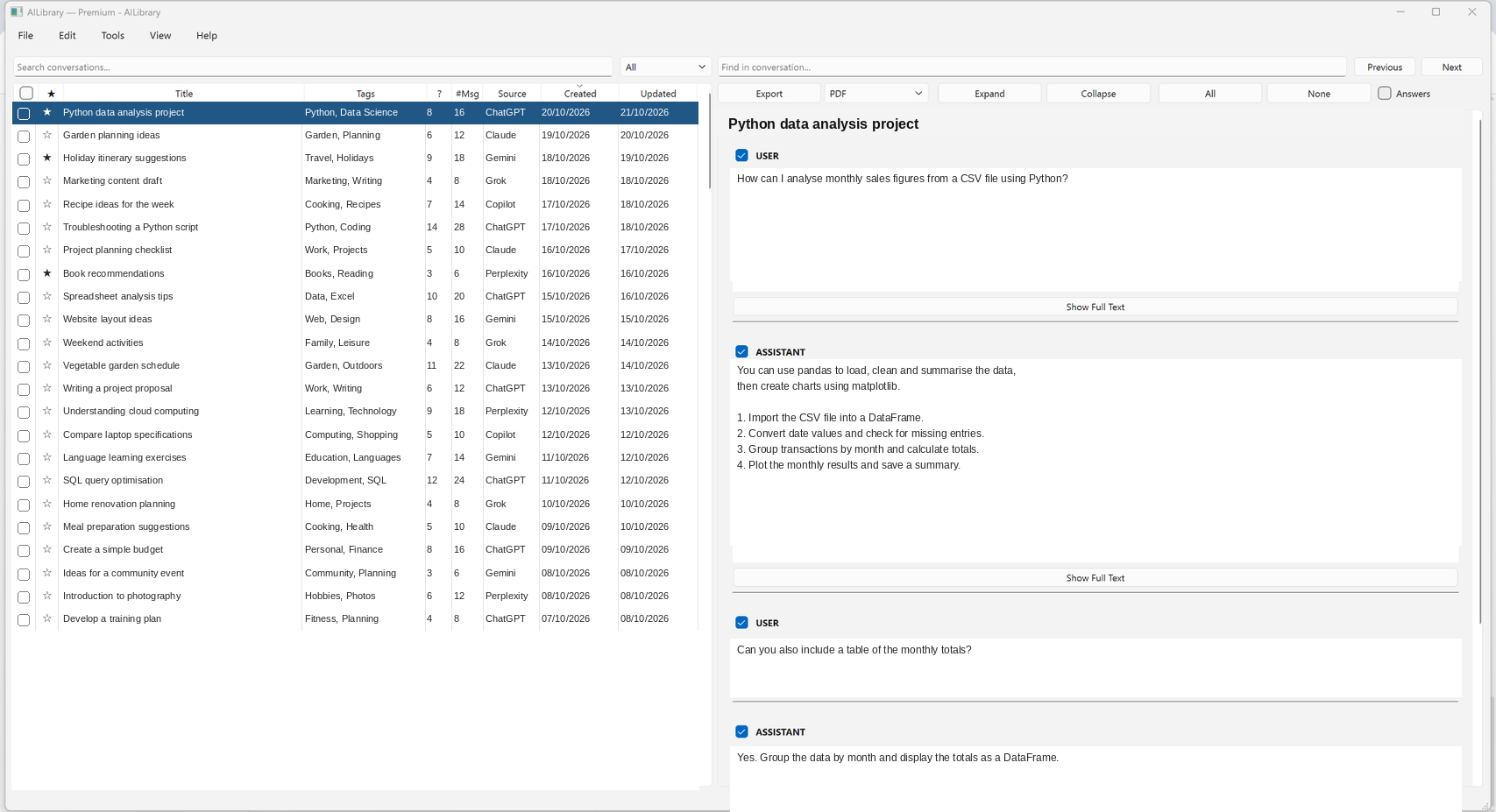
- Browse conversations in a split-pane window.
- Add notes, tags and favourites.
- Expand or collapse message text.
- Select individual questions and answers for export.
- Choose conversations using selection checkboxes.
Export in five formats
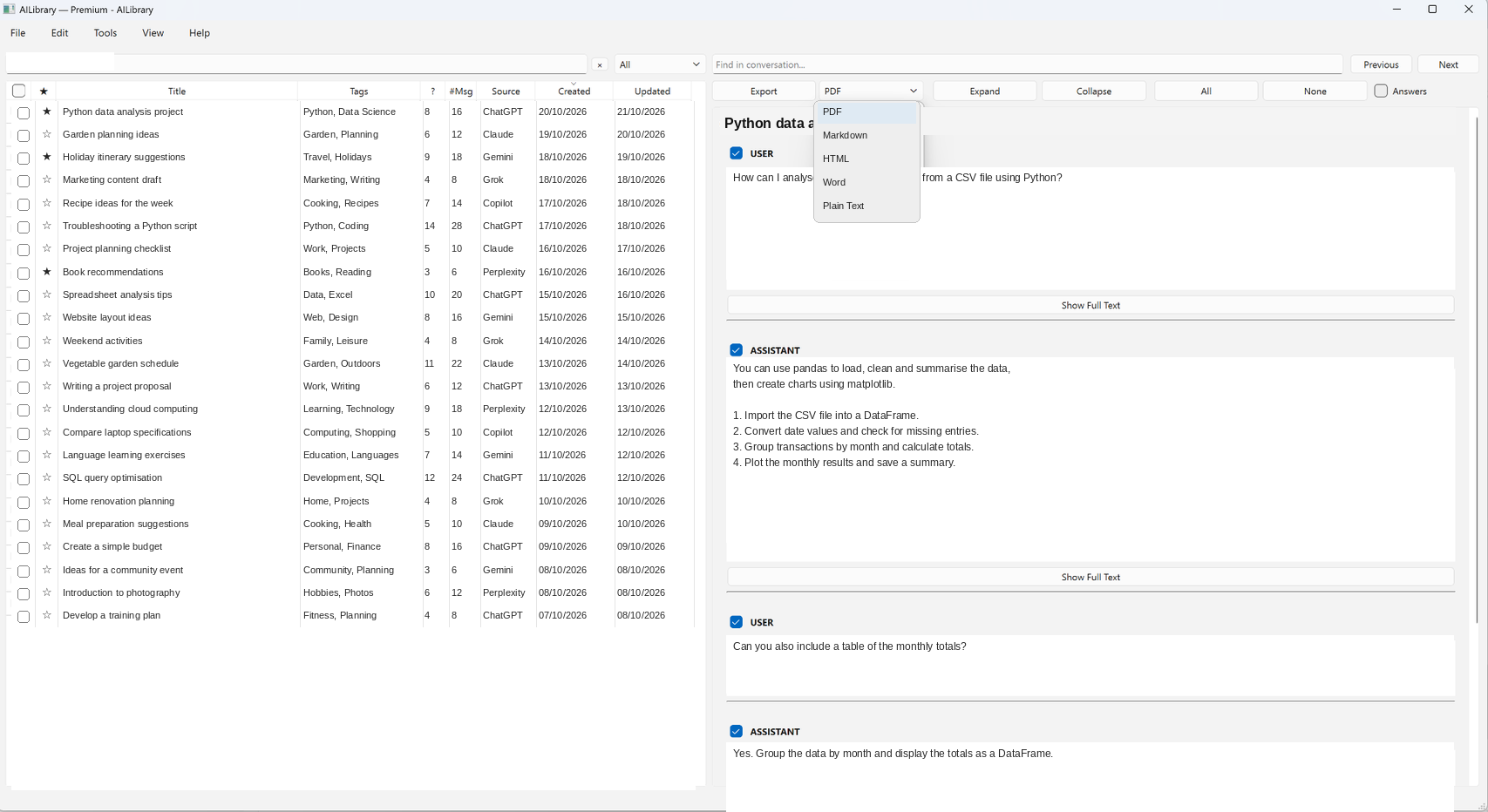
Export to PDF, DOCX (Word), Markdown, HTML or plain text. Create documentation, retain an offline record or edit the output with another application. Selection controls let you choose the content to include.
Backups, updates and licensing
Backup and restore
Keep a backup copy of the local conversation database and restore it when needed.
Check for updates
Check for a newer release and manage the automatic update-check frequency.
Free and Premium
Use the application with up to 30 imported conversations or activate Premium for unlimited imports.