 AILibrary
Using ChatGPT, Claude, Gemini, Grok or another AI service can leave useful work scattered across separate accounts. An effective archive needs both original exports and a searchable working copy. This guide explains how to build one with AILibrary and how to back it up.
Export your history from each supported provider → import its supported file into AILibrary → search and organise conversations → back up the AILibrary database and store a copy safely.
Before you start: understand the two kinds of backup
Provider export
A copy of the conversation data supplied by ChatGPT, Claude or another AI service. Useful as an original source for importing again.
AILibrary database backup
A copy of your local AILibrary collection, including imported conversations and your organisation work such as tags and notes.
Keep both. Exporting a provider archive does not automatically preserve tags or notes you add later inside AILibrary. Likewise, a database backup does not change or back up the conversations still held online by an AI provider.
AI providers can change export formats and availability. Some account types may not support bulk export, and the files may not contain every kind of attachment or media.
1. Export your conversation history from each service
- Make a short list of the services you use: for example ChatGPT, Claude, Gemini and Grok.
- Use each provider's official export or data-download process. Save the original ZIP, JSON or other supported file.
- Give the files clear names, such as
ChatGPT-export-2026-11.zip, so you can recognise the provider and export date. - Check that the download is complete before deleting files or changing accounts.
AILibrary supports several providers, but their formats differ. Visit the import documentation for provider-specific instructions. For ChatGPT, use OpenAI's official export guide.
When possible, store the provider exports in a folder that is backed up separately. Treat these files as sensitive: they may include API keys, personal information or confidential discussions shared during chats.
2. Bring the exports into one searchable library
- Install and open AILibrary.
- Use File → Import Source to select the provider that supplied the file.
- Choose File → Import and select its supported export file.
- Repeat for each service. After every import, review the results and spot-check a few conversations for completeness.
- Use the conversation table to browse the imported history and identify the source and dates.
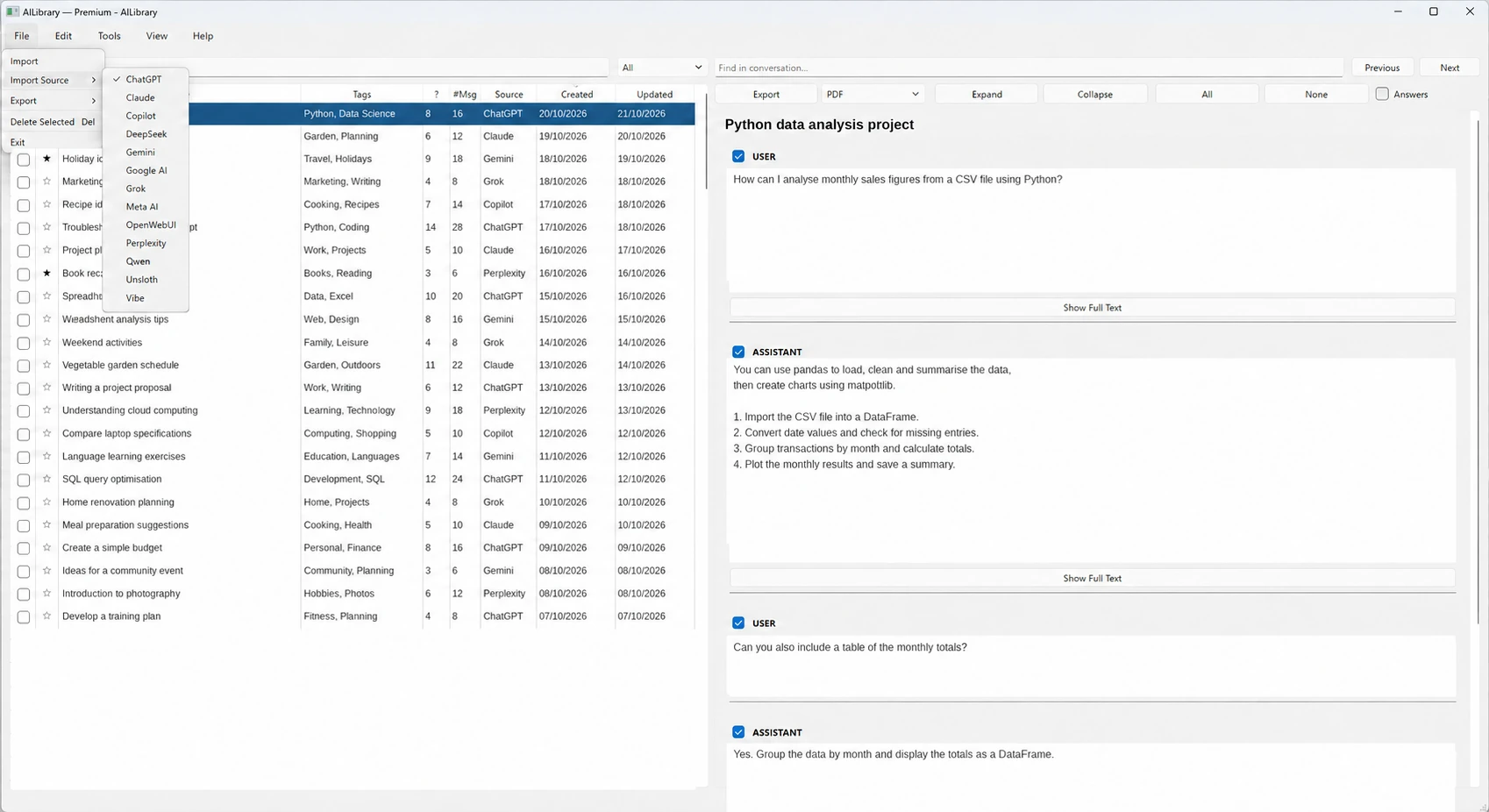
The Free edition lets you retain up to 30 conversations; Premium permits further imports beyond that limit. AILibrary is a local archive and search tool, not a service that automatically connects to or synchronises all your AI accounts.
3. Search, organise and protect your library
Find material across providers
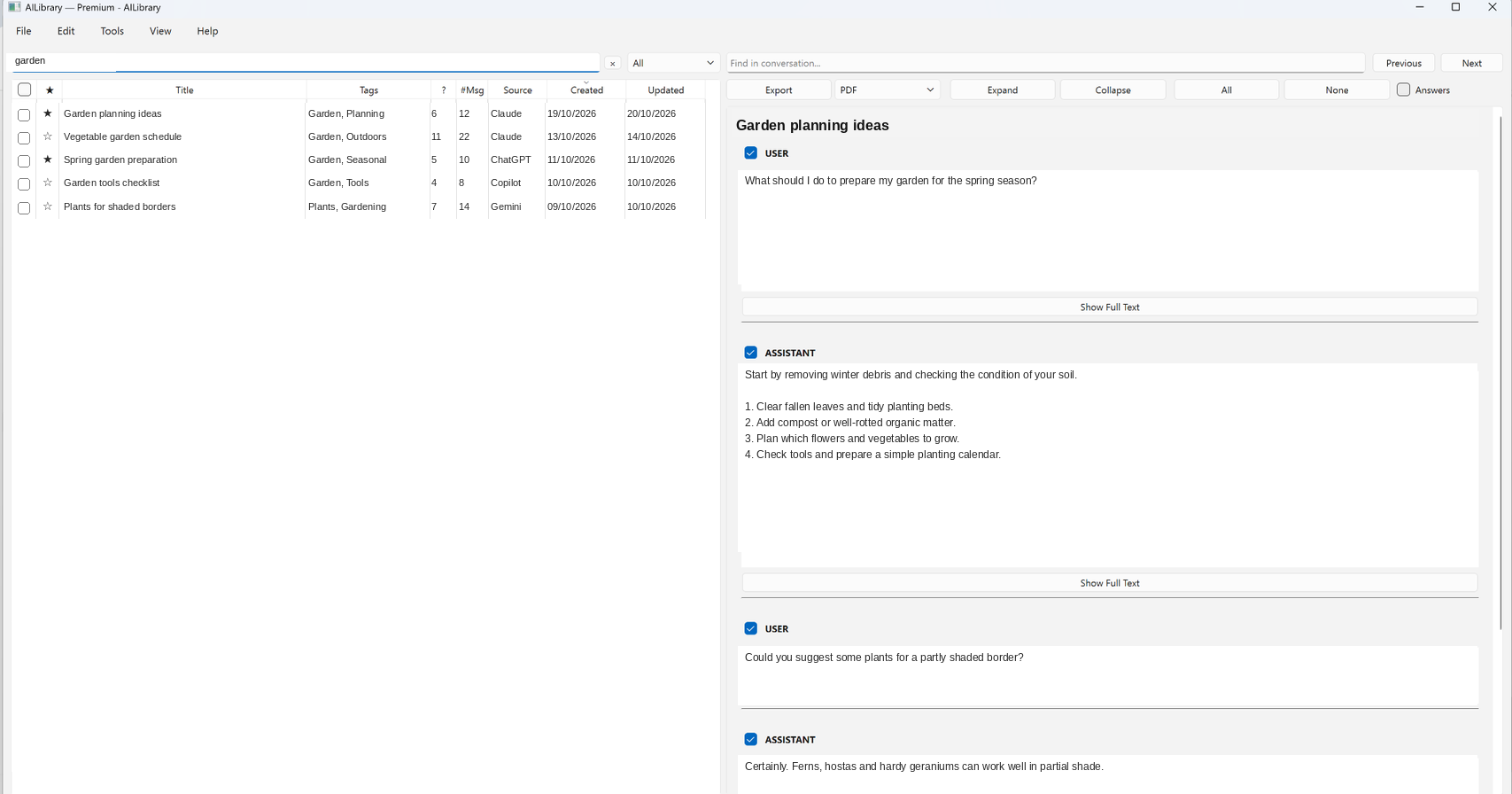
Type a phrase or topic into AILibrary's main search field to search imported conversations across the sources in your collection. You can narrow your work using tags, conversation titles, source and dates. A separate “Find in conversation” tool helps locate text inside the conversation currently open.
Keep a useful structure
Use consistent tags such as Python, Research, Clients or Networking, mark particularly useful conversations as favourites and add brief notes so you can recognise what you learned.
Back up the local database
- Use AILibrary's File → Backup DB option to make a database backup.
- Keep a protected copy in a separate location, ideally another drive or encrypted backup destination.
- Keep your original provider export files as well; they provide an independent record of what was downloaded.
- Make a fresh backup before major upgrades, device changes or bulk deletions. Test your recovery procedure before relying on it.
For an actively used archive, make a database backup after significant imports or organisation work, and maintain a separate protected copy. Decide the frequency based on how often you would be willing to redo your work.
Export important results separately
For a report or a particularly useful technical solution, export selected conversations as PDF, DOCX, Markdown or HTML. These readable files are helpful in addition to database backups—but are not a replacement for backing up your whole library.
Common questions
Does AILibrary automatically fetch new conversations from ChatGPT, Claude or Gemini?
No. Use the provider's data export and import updated files into AILibrary. Check the import results for new or updated conversations.
Can AILibrary guarantee a complete copy of every AI chat?
No archival tool can recover material absent from a provider's export. The exact supported data can vary by provider, account type and export format. Verify important conversations after importing.
Is a PDF export a full backup?
Not on its own. PDF is useful for reading and sharing selected information, but a database backup and the original provider exports are better suited to preserving a working collection.
What if my Premium subscription ends?
Your existing library remains available. The Free edition's 30-conversation limit applies to new imports, and your existing conversations are preserved.
Give your AI research a permanent home
Search old conversations, add your own organisation, and keep a backup that you control.