 AILibrary
Important: Provider interfaces and export contents can change. Confirm the provider’s current procedure before exporting private data.
Step 1 — Export your OpenWebUI conversations
- Open your OpenWebUI instance and click your profile name or avatar.
- Choose Settings, then Data Controls.
- Select Export Chats to download the JSON file containing your conversation history.
- Keep a copy of that JSON file as a backup and use it for the AILibrary import.
Export guidance: Official OpenWebUI import and export guide.
Export Chats downloads your chat history as JSON. Your administrator may control access to data-management features.
Step 2 — Import the export into AILibrary
- Open AILibrary and choose File → Import Source.
- Select OpenWebUI from the available providers.
- Choose the provider export file in the format supported by your version of AILibrary. If the file is not recognised, do not convert it by changing its filename extension.
- Check the imported conversation count and sample messages, then organise or export them.

Step 3 — Search, organise and export
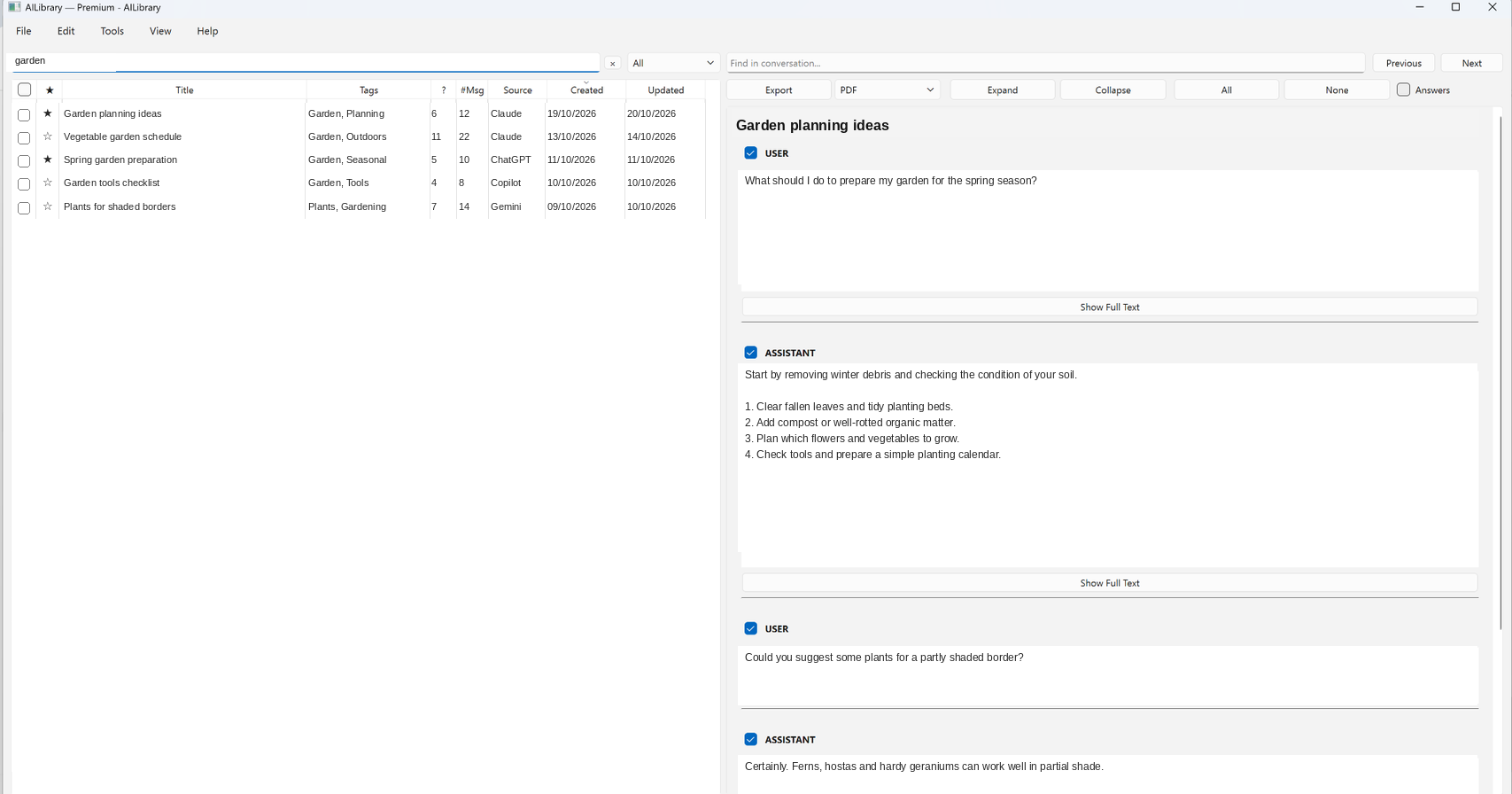
Once a compatible export is imported, use AILibrary’s full-text search, tags, notes, favourites and document exports. Keep the original source archive securely in case you need to repeat the import.
Troubleshooting
- No conversations imported? Check that your export contains conversation history and that you selected the matching import source.
- Export unavailable? Check your account or organisation's permissions and the provider's help page.
- Unexpected formatting? Export formats evolve. Try the latest AILibrary release and consult support.
- Privacy: Keep original archives secure and avoid sharing private conversation exports in support requests.
Organise your OpenWebUI history
AILibrary provides a searchable local collection for supported OpenWebUI exports alongside conversations from other AI services.
Download AILibrary All documentationReviewed 23 October 2026. Export tools and supported formats can change; verify provider instructions before use.