 AILibrary
Why keep a local conversation archive?
Conversations can span several AI services and many projects. Keeping a locally searchable copy of exported conversations makes it easier to revisit solutions, research and notes without opening each old conversation individually. AILibrary imports files exported by supported services; it does not continuously synchronise your ChatGPT account.
Step 1 — Download your ChatGPT history
- Sign in to ChatGPT.
- Open your profile menu and select Settings → Data controls.
- Choose the data export option and confirm your request.
- When OpenAI sends the export link, download the ZIP file and keep it somewhere secure.
Export delivery and availability depend on the account type. OpenAI states exports can take up to seven days, and download links expire after 24 hours. Follow OpenAI's official export instructions if the interface changes. The ZIP may contain sensitive personal data, so avoid uploading it to public file-sharing services.
Step 2 — Import the ZIP into AILibrary
- Install AILibrary if needed and open the application.
- Choose File → Import Source → ChatGPT.
- Select your downloaded ChatGPT ZIP file.
- After import, browse the conversation list and confirm that the expected items appear.

The Free edition supports up to 30 imported conversations. Premium removes the import limit.
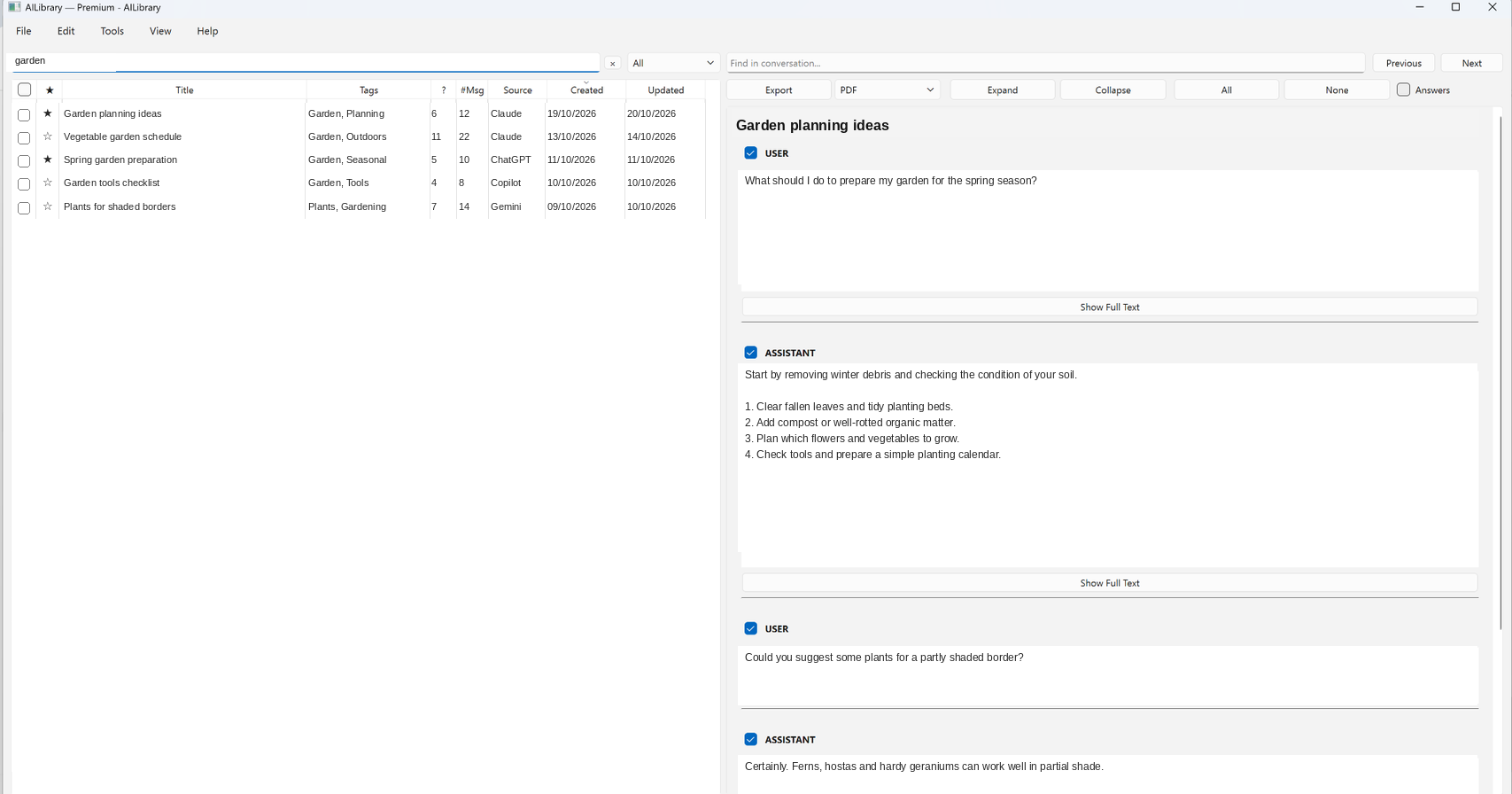
Step 3 — Search your imported conversations
- Enter a term in the main library search field to find matching conversations.
- Select a result to read it in the preview pane.
- Use Find in conversation to locate a particular phrase within the selected conversation.
- Add tags, notes or favourites to make useful conversations easier to revisit.
Step 4 — Back up your AILibrary database
- Use AILibrary's Backup Database function in its application menus.
- Select a safe destination for the backup file, preferably outside the normal application data folder.
- Keep an additional copy on an external drive or an encrypted backup location.
- Periodically confirm the backup can be accessed and use the application's Restore Database function when recovering a library.
Back up before replacing or migrating a computer. An AILibrary database backup protects your imported library and its organisation, while the original ChatGPT ZIP preserves a source export. Follow the prompts shown by your installed AILibrary version; menu wording can change between releases.
What works locally?
After import, AILibrary stores conversation content on your computer for browsing, searching and exporting. Importing a new copy of ChatGPT history still requires downloading an export from ChatGPT. Online connectivity is also used for functions such as update checking and Premium entitlement verification; local storage does not mean every feature is entirely offline.
Frequently asked questions
Does AILibrary automatically sync with ChatGPT?
No. You import a ChatGPT data export manually. To bring in later conversations, request a newer export from ChatGPT.
Can I search several AI services together?
Yes. AILibrary's local library can contain conversations imported from multiple supported AI services, making them searchable in one application.
Is an AILibrary database backup the same as a ChatGPT export?
No. A ChatGPT export is a source-data archive from OpenAI. An AILibrary backup preserves the local AILibrary database, including information you may have added to organise your library.
Does cancelling Premium erase imported conversations?
No. Existing conversations are preserved when Premium ends, while the Free edition's import limit applies to further imports.
Build a searchable local conversation archive
Install AILibrary to import ChatGPT exports, search across conversations and back up your local library.
Download AILibrary Export conversations to PDFGuide reviewed: 23 October 2026. Third-party export instructions and AILibrary menu labels may change.