 AILibrary
Choose the right export format
AILibrary supports PDF, Markdown, HTML, Word (DOCX) and Plain Text. The best choice depends on what you want to do with your conversation after exporting it.
| Format | Best for | Typical use |
|---|---|---|
| Word (DOCX) | Editable documents | Revise content in Word or compatible word processors |
| Markdown (.md) | Plain-text documentation | Notes, technical documentation, version-controlled projects |
| HTML (.html) | Browser viewing | Read and share exported content as a web page |
| Consistent presentation | Printing and archiving | |
| Plain Text (.txt) | Maximum simplicity | Basic text processing and compatibility |
Step 1 — Import conversations into AILibrary
- Export your conversation data from a supported AI service using its current export instructions.
- Open AILibrary and choose File → Import Source, then select the matching service.
- Choose the downloaded export file and complete the import.
- Select an imported conversation in your library to review its messages.

Step 2 — Select the format and export
- Choose a conversation from AILibrary's library list.
- In the conversation preview, find the Export format dropdown.
- Select Word, Markdown or HTML depending on your goal.
- Use available message-selection controls if you only want specific questions or responses.
- Start the export, choose the destination when prompted, and open the resulting file to check it.
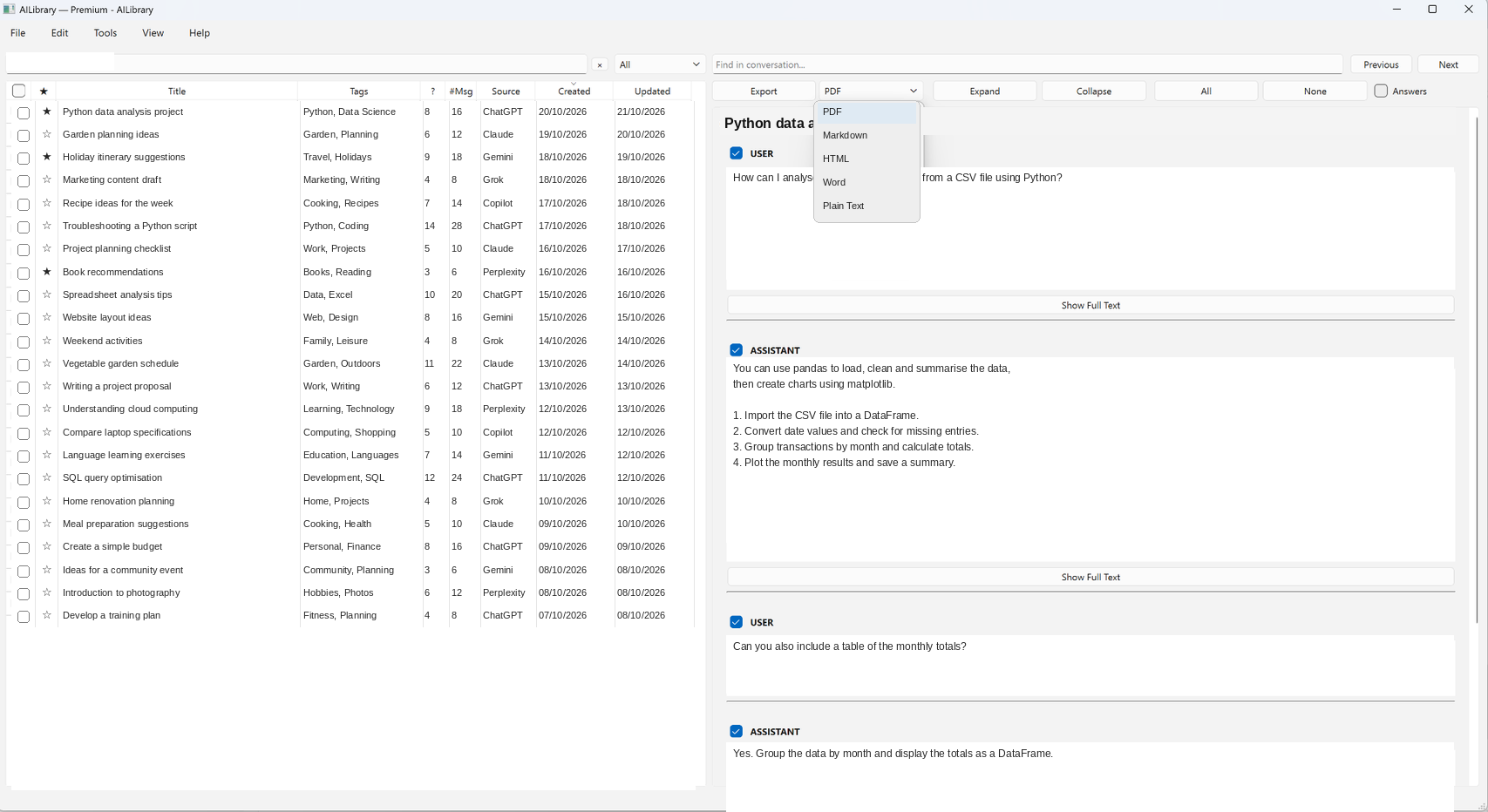
Export to Word (DOCX)
Choose Word when you intend to edit, rearrange or annotate the content in a word processor. Save the DOCX file, open it in Microsoft Word or a compatible editor, and review any complex formatting before distributing it.
Export to Markdown
Choose Markdown when your output will become project notes, a README, or text-based documentation. Markdown is convenient for tools that support headings, lists and code fences. Check complex tables and mathematical notation after export, as rendering varies between applications.
Export to HTML
Choose HTML for a document that can be opened in a web browser. HTML can be useful for reading exported conversations without needing a word processor. Review the resulting file before sharing it, especially if conversation content includes private data or external links.
Tips for cleaner exports
- Rename or organise conversations before exporting if that makes the finished files easier to identify.
- Use the message-selection controls to omit unrelated discussion where appropriate.
- Open the exported file and verify important formatting, code snippets and links.
- Keep the original conversation export and an AILibrary database backup if long-term preservation matters.
- Avoid publishing sensitive conversation content without checking it carefully.
Frequently asked questions
Can AILibrary export directly from my ChatGPT account?
No. Export conversation data from ChatGPT first, import the resulting archive into AILibrary, and then choose the output format you want. See the ChatGPT export guide for the initial steps.
Can I export only selected messages?
AILibrary supports selecting individual user questions and assistant responses for export. Options may vary depending on the export workflow and application version.
Which format is best for editing?
Word (DOCX) is generally the most convenient choice for ordinary document editing. Markdown suits text-based documentation and technical workflows.
Do I need Premium to export?
The Free edition includes export features. Its principal restriction is a limit of 30 imported conversations; Premium removes that import limit.
Export your AI conversations in the format you need
Install AILibrary to organise conversations from supported services and export them to Word, Markdown, HTML, PDF or Plain Text.
Download AILibrary More documentationGuide reviewed: 23 October 2026. AI provider export interfaces and AILibrary menu wording may change over time.